
ㅍㅋㅇㅂ 고객 지원
오류 신고, 기능 제안, 그 밖의 문의는 아래 이메일로 보내 주세요. 사용 중인 기기 모델, iOS 버전, 앱 버전, 문제가 생긴 화면의 스크린샷을 함께 보내 주시면 더 빨리 도와드릴 수 있습니다.
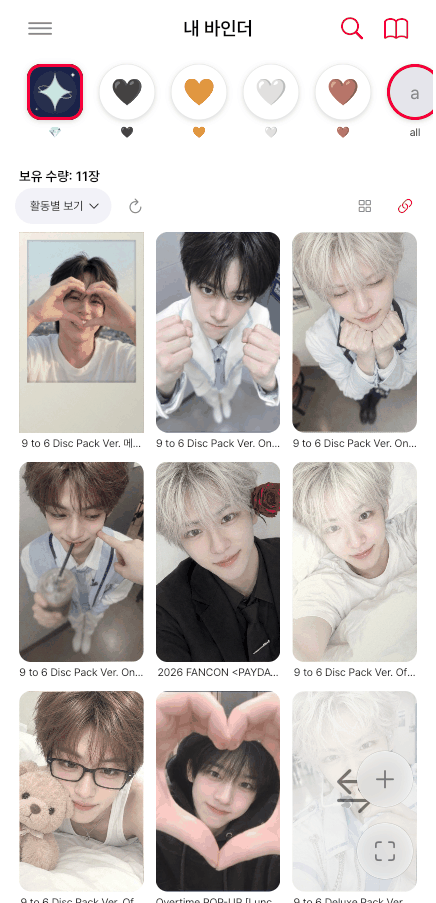
버튼을 누르면 이 브라우저에서 앱 화면이 그대로 열려요. 예시 데이터로 사진 등록, 포카 찾기, 도감 가져오기를 직접 해 볼 수 있습니다.
데모 체험하기자주 묻는 질문
계정이 꼭 있어야 하나요?
아니요. 가입이나 로그인 없이 모든 기능을 쓸 수 있습니다. Google 로그인은 백업과 여러 기기 간 동기화를 원할 때만 선택해서 사용합니다.
내 포토카드 데이터는 어디에 저장되나요?
기기 안에 저장됩니다. 동기화를 켜면 본인의 Google Drive(앱 전용 공간)에도 저장됩니다. 개발자 서버는 없으며, 개발자는 이용자의 데이터를 볼 수 없습니다.
웹 버전을 로그인 없이 쓰면 데이터는 그 브라우저 안에만 저장됩니다. 브라우저에서 쿠키·사이트 데이터를 지우거나 시크릿 창을 닫으면 함께 지워지고, 다른 브라우저나 기기에서는 보이지 않습니다. 오래 쓸 데이터라면 Google 로그인으로 동기화를 켜거나 메뉴 › 설정 › 백업에서 파일로 내보내 두세요.
기기를 바꾸거나 여러 기기·웹에서 쓰고 싶어요.
앱에서 같은 Google 계정으로 로그인하고 동기화를 켜면, 다른 iPhone이나 웹 버전에서도 같은 데이터를 이어서 볼 수 있습니다.
다른 사람이 공유한 포카도감을 받으려면?
받은 링크를 열고 ‘ㅍㅋㅇㅂ 앱에서 열어 내 도감에 추가’를 누르세요. 또는 링크를 복사한 뒤 앱의 메뉴 › 템플릿 관리 › + › 링크로 가져오기에 붙여 넣어도 됩니다. 파일(.pocadex)로 받았다면 파일을 ㅍㅋㅇㅂ 앱으로 열거나, 템플릿 관리 › + › 파일로 가져오기에서 고르면 됩니다.
바인더 공유 링크를 그만 공유하고 싶어요.
공유 파일은 본인의 Google Drive에 만들어집니다. 앱의 바인더 공유 화면에서 '공유 중지'를 누르면 Drive의 공유 파일이 지워져 링크가 바로 막힙니다.
데이터를 모두 지우고 싶어요.
- 기기의 데이터: 앱을 삭제하면 함께 지워집니다.
- Google Drive의 동기화 데이터: drive.google.com → 설정 → 앱 관리 → ㅍㅋㅇㅂ(poca blanket) → 옵션 → 숨겨진 앱 데이터 삭제
템플릿 사진의 글자 인식은 어디서 처리되나요?
지금은 iPhone(iOS) 앱만 있습니다. 안드로이드 앱은 아직 없습니다.
iOS 앱에서는 iPhone에 내장된 글자 인식 기능을 써서 기기 안에서만 처리하며, 사진이 외부로 전송되지 않습니다.
웹 버전과 데모에서는 글자 인식을 쓸 수 없어서, 템플릿을 가져올 때 앨범·멤버 이름을 직접 입력합니다. 카드를 찾아 자르는 기능은 웹에서도 똑같이 됩니다.

poca blanket Support
For bug reports, feature requests, or any other questions, please email us. Including your device model, iOS version, app version, and a screenshot of the issue helps us respond faster.
The button opens the app screens right here in your browser. Try photo registration, card search and catalog import with sample data.
Open the demoFAQ
Do I need an account?
No. All features work without signing up or signing in. Google Sign-In is optional and only needed for backup and syncing across devices.
Where is my data stored?
On your device. If you turn on sync, it is also stored in your own Google Drive (in a private app-data folder). There is no developer server, and the developer cannot access your data.
If you use the web version without signing in, your data is stored only in that browser. Clearing cookies and site data, or closing a private window, deletes it, and it won't appear in other browsers or devices. To keep it, turn on sync with Google sign-in or export a backup file from Menu › Settings › Backup.
How do I use the app on a new device or on the web?
Sign in with the same Google account and turn on sync. Your data will then be available on your other iPhones and on the web version.
How do I import a checklist someone shared?
Open the link and tap the button to open it in the app. Or copy the link and paste it in the app under Menu › Template manager › + › Import from link. If you received a .pocadex file, open it with the app, or pick it in Template manager › + › Import from file.
How do I stop sharing a binder link?
Shared binder files are created in your own Google Drive. Tap “Stop sharing” on the binder's share screen in the app. The shared file is deleted from your Drive and the link stops working immediately.
How do I delete all my data?
- Data on your device: deleted when you delete the app.
- Synced data in Google Drive: drive.google.com → Settings → Manage apps → poca blanket → Options → Delete hidden app data.
Where is text recognition for template photos processed?
The app is currently available for iPhone (iOS) only. There is no Android app yet.
The iOS app uses the iPhone's built-in text recognition, so it runs on your device only and photos are not sent anywhere.
Text recognition is not available on the web version or in the demo, so you type album and member names yourself when importing a template. Finding and cropping the cards works the same on the web.
poca blanket 客户支持
错误反馈、功能建议及其他问题,请发送邮件至以下地址。附上所用设备型号、iOS 版本、应用版本以及出现问题的页面截图,可以帮助我们更快解决。
点按按钮即可在此浏览器中打开应用页面。可用示例数据亲自试试照片登记、查找小卡和导入图鉴。
体验演示常见问题
一定要有账号吗?
不需要。无需注册或登录即可使用所有功能。只有想要备份或在多台设备间同步时,才需要选择使用 Google 登录。
我的小卡数据保存在哪里?
保存在设备中。开启同步后,也会保存到你自己的 Google Drive(应用专用空间)。没有开发者服务器,开发者也无法查看用户的数据。
在未登录的状态下使用网页版时,数据只保存在该浏览器中。清除浏览器的 Cookie · 网站数据或关闭无痕窗口时会一并删除,在其他浏览器或设备上也看不到。需要长期保存的数据,请用 Google 登录开启同步,或在 菜单 › 设置 › 备份与重置 中导出文件。
同步需要使用 Google 账号和 Google Drive。
想换设备,或在多台设备 · 网页上使用。
在应用中用同一个 Google 账号登录并开启同步,就能在其他 iPhone 或网页版上继续查看相同的数据。
如何接收别人分享的小卡图鉴?
打开收到的链接,点按“在 poca blanket 应用中打开并加入我的图鉴”。也可以复制链接后,粘贴到应用的 菜单 › 模板管理 › + › 通过链接导入。如果收到的是文件(.pocadex),用 poca blanket 应用打开文件,或在 模板管理 › + › 通过文件导入 中选择即可。
想停止分享卡册链接。
分享文件创建在你自己的 Google Drive 中。在应用的卡册分享页面点按“停止分享”,Drive 中的分享文件会被删除,链接也会立即失效。
想删除所有数据。
- 设备中的数据:在 菜单 › 设置 › 备份与重置 › 从本设备删除 中删除,或删除应用时一并删除。
- Google Drive 中的同步数据:drive.google.com → 设置 → 管理应用 → poca blanket → 选项 → 删除隐藏的应用数据
模板照片的文字识别在哪里处理?
目前只有 iPhone(iOS)应用,还没有安卓应用。
iOS 应用使用 iPhone 内置的文字识别功能,只在设备中处理,照片不会被发送到外部。
网页版和演示中无法使用文字识别,导入模板时需要手动输入专辑 · 成员名称。查找并裁剪卡片的功能在网页上同样可用。
poca blanket 客戶支援
錯誤反饋、功能建議及其他問題,請傳送郵件至以下地址。附上所用裝置型號、iOS 版本、應用版本以及出現問題的頁面截圖,可以幫助我們更快解決。
點按按鈕即可在此瀏覽器中開啟應用頁面。可用示例資料親自試試照片登記、查詢小卡和匯入圖鑑。
體驗演示常見問題
一定要有賬號嗎?
不需要。無需註冊或登入即可使用所有功能。只有想要備份或在多臺裝置間同步時,才需要選擇使用 Google 登入。
我的小卡資料儲存在哪裡?
儲存在裝置中。開啟同步後,也會儲存到你自己的 Google Drive(應用專用空間)。沒有開發者伺服器,開發者也無法檢視使用者的資料。
在未登入的狀態下使用網頁版時,資料只儲存在該瀏覽器中。清除瀏覽器的 Cookie · 網站資料或關閉無痕視窗時會一併刪除,在其他瀏覽器或裝置上也看不到。需要長期儲存的資料,請用 Google 登入開啟同步,或在 選單 › 設定 › 備份與重置 中匯出檔案。
同步需要使用 Google 賬號和 Google Drive。
想換裝置,或在多臺裝置 · 網頁上使用。
在應用中用同一個 Google 賬號登入並開啟同步,就能在其他 iPhone 或網頁版上繼續檢視相同的資料。
如何接收別人分享的小卡圖鑑?
開啟收到的連結,點按“在 poca blanket 應用中開啟並加入我的圖鑑”。也可以複製連結後,貼上到應用的 選單 › 模板管理 › + › 透過連結匯入。如果收到的是檔案(.pocadex),用 poca blanket 應用開啟檔案,或在 模板管理 › + › 透過檔案匯入 中選擇即可。
想停止分享卡冊連結。
分享檔案建立在你自己的 Google Drive 中。在應用的卡冊分享頁面點按“停止分享”,Drive 中的分享檔案會被刪除,連結也會立即失效。
想刪除所有資料。
- 裝置中的資料:在 選單 › 設定 › 備份與重置 › 從本裝置刪除 中刪除,或刪除應用時一併刪除。
- Google Drive 中的同步資料:drive.google.com → 設定 → 管理應用 → poca blanket → 選項 → 刪除隱藏的應用資料
模板照片的文字識別在哪裡處理?
目前只有 iPhone(iOS)應用,還沒有安卓應用。
iOS 應用使用 iPhone 內建的文字識別功能,只在裝置中處理,照片不會被髮送到外部。
網頁版和演示中無法使用文字識別,匯入模板時需要手動輸入專輯 · 成員名稱。查詢並裁剪卡片的功能在網頁上同樣可用。